FixYourVPN
When a streaming service stops working with your VPN, the server you're connected to is almost always the reason. Services block VPN access by building lists of known VPN IP addresses. When your server's IP is on that list, the stream won't play. Switching to a different server gets you a fresh IP address that probably isn't flagged yet. It takes about ten seconds and often sorts the problem within a few tries.
Why server-switching works
Your VPN gives you a choice of many servers in each country. Each server has its own IP address, and streaming services can only block the ones they know about. When a stream is blocked, it means that specific server's IP has been flagged. Switching to a different server in the same country gives you a different IP, and the new one may not be on the list.
This is why server-switching is the first thing to try. It's quick, it doesn't need any technical knowledge, and it fixes most streaming blocks within a couple of attempts.
How to switch servers in your VPN app
The steps are similar across most VPN apps, even if the layout looks a bit different:
- Disconnect from your current server.
- Open the server list and find your target country.
- Pick any server that isn't the one you were just on.
- Connect to the new server.
- Open the streaming service in a fresh browser tab or reload the app.
If it still doesn't work, try another server. Give it two or three tries before moving on to the other fixes below.
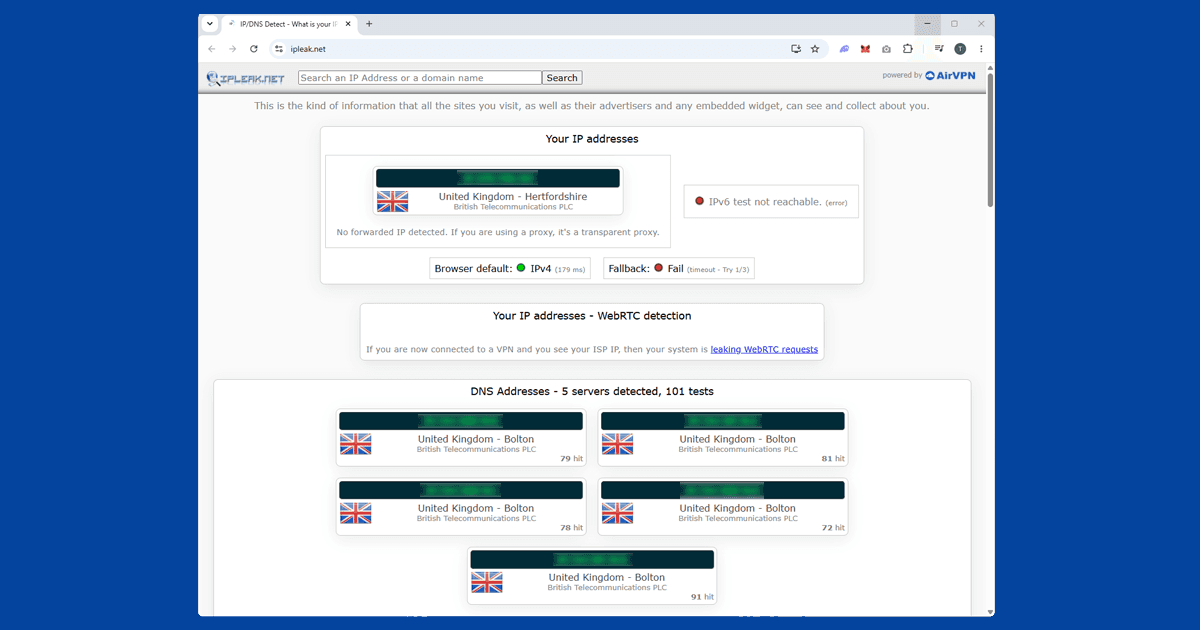
After switching, use our IP address checker to confirm the new server is showing a different IP in the right country. If the IP hasn't changed, the switch didn't take effect: disconnect fully, wait a couple of seconds, and reconnect.
In NordVPN
Tap a country on the map or use the search bar to find servers in your target country. NordVPN's SmartPlay feature helps with geo-restricted streaming by handling DNS routing in the background. Check it's enabled in Settings for the best results.
In ExpressVPN
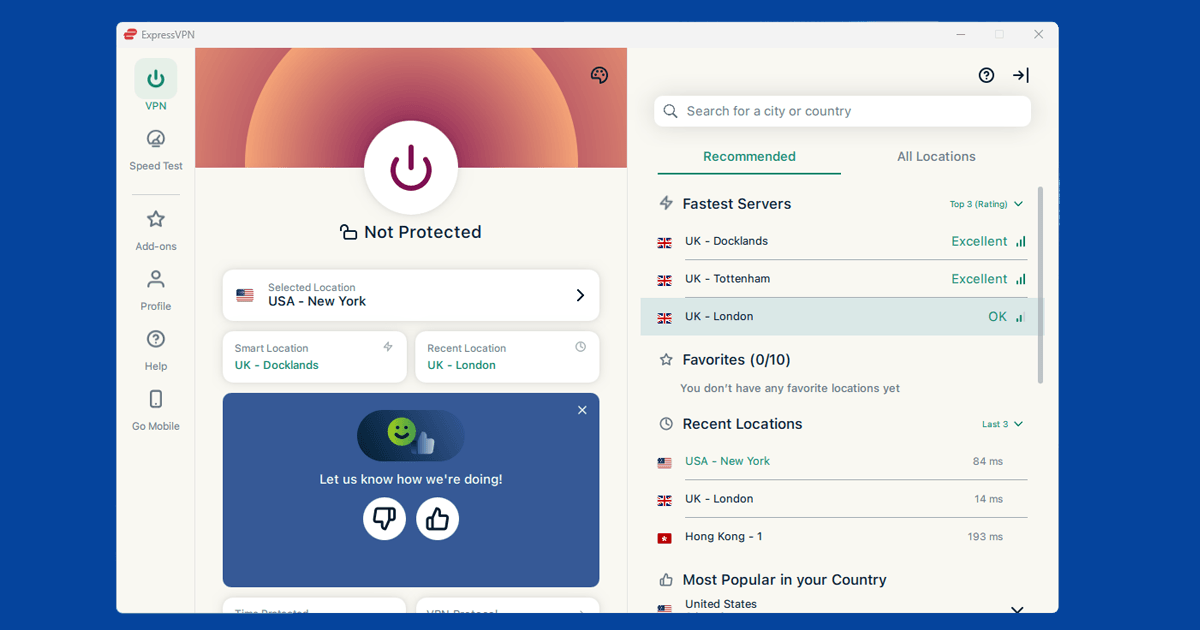
Tap Choose Location, select your target country, and pick a different city or server from the list. ExpressVPN recommends servers automatically, but you can browse the full list manually if the suggested one isn't getting through.
In PureVPN
Look for a Streaming mode or purpose in the app. This filters the server list to those most likely to work with streaming services. Pick a different server from there.
Streaming-optimised servers
Most reputable VPN providers set aside a group of servers they actively keep unblocked for streaming. These get monitored more closely, and when a streaming service blocks them, the provider is more likely to replace the IP address quickly. Start with these if your app offers them.
The trade-off is that they can be slightly busier, since more people use them. If the stream is slow or buffering, try a regular server in the same country instead. It may work just as well and be faster.
When to try more than the server
If you've tried three or four servers and none of them work, the server probably isn't the issue. A few other things can cause a streaming service to detect your real location even when your IP address looks right:
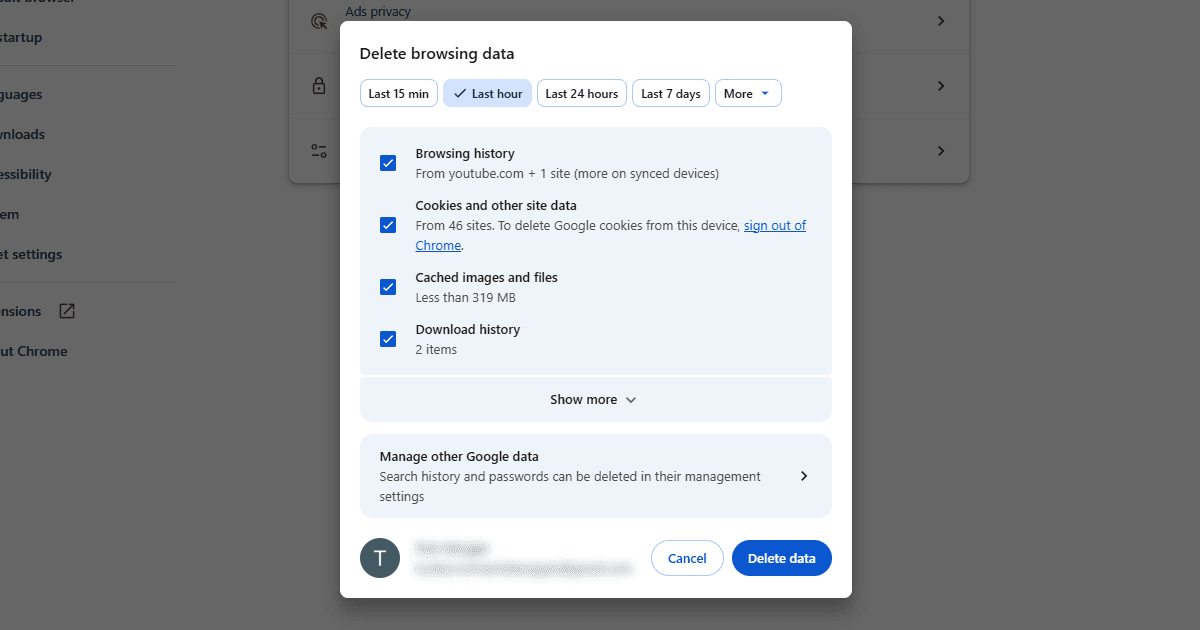
- Cached cookies in your browser. Your browser may have stored location data from a previous visit. Opening a private or incognito window clears this. Our guide to clearing cache and cookies walks through the full process.
- A DNS leak. Your device may be sending location-revealing requests outside the VPN, even though your IP address looks fine. Run our IP and DNS checker with your VPN connected: if your real internet provider shows up in the results, you have a DNS leak. Our DNS leak guide covers the fix for all major VPN apps.
- WebRTC in your browser. WebRTC is a browser feature that can reveal your real location even with a VPN running. In Chrome, install uBlock Origin and enable "Prevent WebRTC from leaking local IP addresses" in its settings. In Firefox, go to about:config and set
media.peerconnection.enabledto false. Safari has stricter controls on WebRTC and is less likely to leak your location through this route.
How many servers should you try?
Two or three is usually enough to tell whether the server is the issue. If four and five don't work either, move on to checking for DNS leaks or cookies rather than working through the whole server list. The problem is likely something else at that point.
Your VPN provider's support team is the quickest route to an answer if you're stuck. Good providers track which servers are currently working with which services and can point you straight to one.
If you've tried everything and nothing works
Not all VPN providers put the same effort into maintaining working streaming servers. If your VPN can't reliably unblock the services you care about, it may not be up to the task. Free VPNs in particular are frequently blocked by major streaming services: their IP address pools are small and widely known.
NordVPN and ExpressVPN both have strong track records for streaming. If you're on a different provider and hitting persistent blocks, switching to one of these may be worth it.