FixYourVPN
If your VPN is connected but a streaming service is still showing the wrong content or blocking you, stored browser data is often the reason. Your browser holds on to small files from your last visit, and those files can tell a streaming service where you really are, even after your VPN has changed your IP address. Clearing that data, or just using a private window, usually sorts it in a few seconds.
What's actually going on
Every time you visit a website, your browser saves two kinds of data. The cache is a collection of images and files saved so the page loads faster next time. Cookies are small text files the site writes to remember you: your login, your preferences, and in some cases your location.
When you visit a streaming service without a VPN, the site sees your real IP address and may store your location in a cookie. If you then turn on your VPN and reload the service, your IP address has changed, but that old cookie is still sitting in your browser. The streaming service reads both your new VPN IP and the old cookie, and the cookie can tip it off that something doesn't add up.
Clearing your cookies and cache removes that stored data, so the next time you load the service it starts completely fresh.
The quickest fix: use a private window
You don't always need to clear your entire browser history. Opening a private or incognito window starts a fresh session with no cookies from your regular browsing at all. Connect your VPN first, then open the private window, then load the streaming service.
- Chrome and Edge: Ctrl + Shift + N (Windows) or Cmd + Shift + N (Mac)
- Firefox: Ctrl + Shift + P (Windows) or Cmd + Shift + P (Mac)
- Safari: File > New Private Window, or Cmd + Shift + N
This is often all you need. If the private window doesn't help, do the full clear below.
How to clear cache and cookies on desktop
Connect your VPN first, then clear the data, then reload the streaming service and log in fresh.
Google Chrome
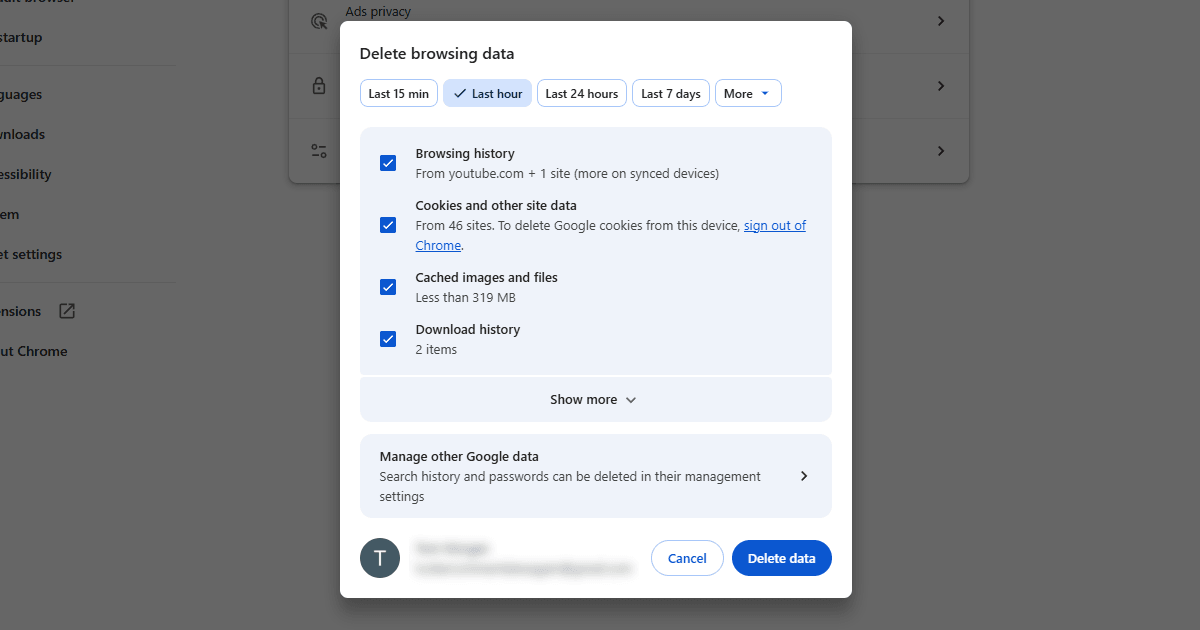
Click the three-dot menu in the top right, then go to Settings > Privacy and security > Clear browsing data. Tick both "Cookies and other site data" and "Cached images and files". Set the time range to "All time", then click Clear data.
Mozilla Firefox
Click the menu (three lines) in the top right, then go to Settings > Privacy & Security. Scroll down to "Cookies and Site Data" and click Clear Data. Tick both options and click Clear.
Safari (Mac)
To clear cookies and site data: go to Safari > Settings > Privacy > Manage Website Data > Remove All.
To clear the cache as well: click Develop in the menu bar, then click Empty Caches. If you don't see a Develop menu, go to Safari > Settings > Advanced and tick "Show Develop menu in menu bar", then try again.
Microsoft Edge
Click the three-dot menu, then go to Settings > Privacy, search, and services > Clear browsing data > Choose what to clear. Tick "Cookies and other site data" and "Cached images and files", then click Clear now.
How to clear cache and cookies on mobile
Safari on iPhone or iPad
Open the Settings app, scroll down to Safari, then tap Clear History and Website Data. This clears cookies and cached data for all sites in one go. Connect your VPN before reopening the streaming service afterwards.
Chrome on Android or iPhone
Tap the three-dot menu, then go to Settings > Privacy and security > Clear browsing data. Tick "Cookies and site data" and "Cached images and files", then tap Clear data.
The right order matters
Follow this order and you'll avoid recreating the problem:
- Connect your VPN to the right server.
- Clear your cache and cookies, or open a private window.
- Load the streaming service and log in fresh.
If you connect to the VPN but visit the streaming site while still logged in from a previous session, that old session cookie may carry your original location. Starting fresh after connecting ensures the service has no prior information about you.
When clearing doesn't help
If you've cleared everything and the streaming service still won't play ball, cookies aren't the problem. The most likely causes at that point are the server itself being blocked (try a different one), a DNS leak sending your real location outside the VPN tunnel, or WebRTC in your browser revealing your real location despite the VPN.