FixYourVPN

Getting your VPN to work on hotel wi-fi is trickier than it should be. Most hotels put a sign-in page between you and the internet, and your VPN can't connect until you complete that step first. There's a second possible cause too, but both are quick to fix once you know what to look for.
Why hotel wi-fi blocks VPNs
The wi-fi sign-in step isn't done yet. When you connect to hotel wi-fi, most properties show a login or terms-acceptance page before giving you full internet access. Until you complete that step, the network only allows basic web traffic, and VPN connections fail because they need a working internet connection to form. This is the most common reason hotel VPNs fail, and the fix takes under a minute.
The network is actively blocking VPN traffic. Some hotels filter VPN connections by identifying the type of connection you're using and dropping it. This is more common in business hotels and in certain countries where network management is tighter. The fix is switching to a protocol that blends in with ordinary web traffic.
There is also a genuine security reason to get your VPN working. Hotel networks are shared environments: every guest on the same wi-fi can potentially see unencrypted traffic. A VPN encrypts everything before it leaves your device, keeping your email, work logins, and personal information private. Without one, hotel wi-fi is one of the riskier networks you can use regularly.
Fix 1: Complete the wi-fi sign-in step first
This fixes most hotel VPN problems. Here is how to do it:
- If your VPN is on, turn it off.
- Connect to the hotel wi-fi.
- Open your browser. A login or terms page should appear automatically. If it doesn't, try navigating to any website and the network will redirect you.
- Accept the terms and conditions, and enter a room number, email, or voucher code if the hotel requires one.
- Once a web page loads normally, turn your VPN back on.
The order matters. Your VPN needs a working internet connection before it can connect, so the portal has to come first.
Many hotels run separate networks for different areas. The lobby, pool, restaurant, and room wi-fi can each have their own sign-in page. If your VPN worked in your room but fails in the lobby, connect to the new network, open a browser without your VPN, complete any login page that appears, and then reconnect.
Port 443 is the standard port for HTTPS, used by virtually every website on the internet. A hotel network that blocked it would break most of the web, which is why even aggressive firewalls leave it open. Running your VPN over port 443 is the most reliable way through a restrictive network.
Fix 2: Switch your VPN protocol
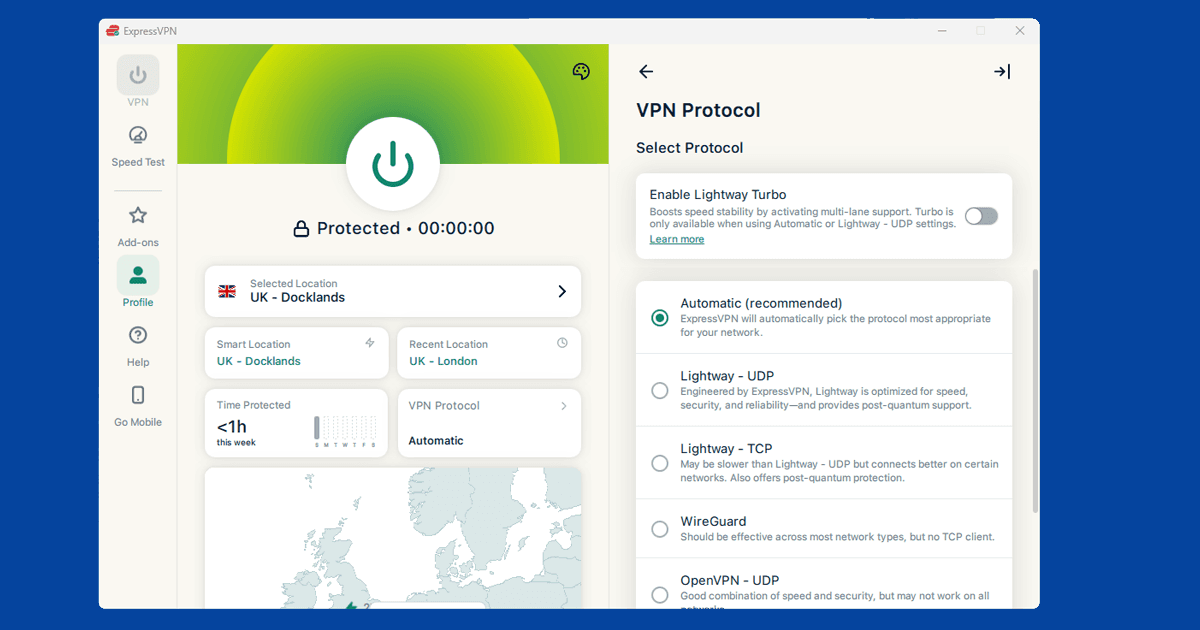
If you have completed the sign-in step and your VPN still isn't connecting, the network is likely filtering VPN traffic. Switch to a protocol that looks like ordinary web traffic. Try these in order:
- OpenVPN TCP on port 443. Port 443 is the standard HTTPS port. Blocking it would break most websites, so even aggressive hotel firewalls leave it open. OpenVPN over TCP on this port is the hardest combination to block.
- WireGuard. WireGuard is faster than OpenVPN and works well on most hotel networks. It uses UDP by default, and some hotel firewalls do block UDP traffic. If standard WireGuard doesn't connect, check whether your VPN app can run WireGuard over TCP.
- TCP mode on any protocol. Most VPN protocols can switch from UDP to TCP. TCP connections look more like regular browsing traffic and pass through more restrictive firewalls.
How to switch in the main apps:
- NordVPN: Settings > Connection > VPN Protocol, then select OpenVPN (TCP).
- ExpressVPN: Preferences > Protocol, then select Lightway TCP or OpenVPN TCP.
Our full protocol-switching guide has step-by-step instructions for every major VPN app.
Fix 3: Use your phone's mobile data instead
If the hotel network is too restrictive and nothing above is working, you can bypass it entirely. Turn on your phone's mobile hotspot and connect your laptop to that instead of the hotel wi-fi. Your VPN connects through mobile data, which has no sign-in pages or traffic filtering.
The main trade-off is data usage. Streaming video over a hotspot eats through your allowance quickly. This fix works well for browsing, email, and calls, but keep an eye on your data if you're not on an unlimited plan.
Fix 4: Check your VPN isn't leaking
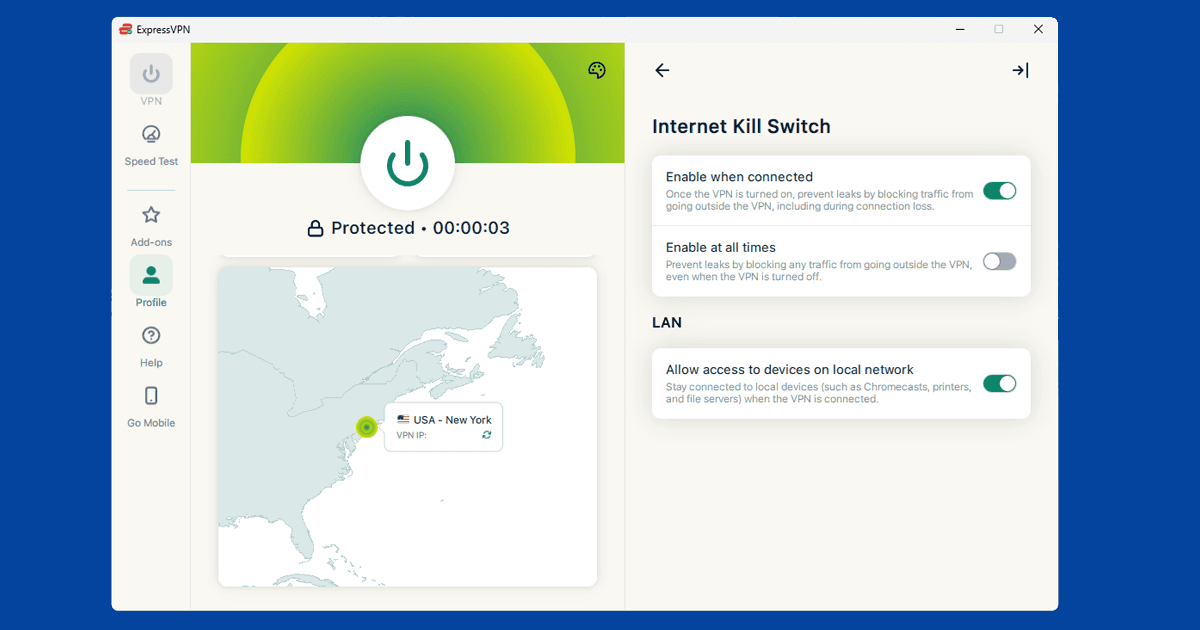
If your VPN appears to be connected but websites are slow or some services still show your real location, you may have a DNS leak. This happens when your device sends certain requests outside the VPN tunnel, even though the connection itself looks active.
Use our IP and DNS checker with your VPN turned on. It shows what location and internet provider any website can currently see. If your real internet provider appears in the results, your VPN has a leak. Enable DNS leak protection in your VPN app's settings (it's usually a single toggle) and run the checker again. Our DNS leak guide walks through the full fix if you need it.
Which VPN works best on hotel wi-fi
For hotel networks, what matters most is protocol flexibility: the ability to switch connection methods when a network is being restrictive.
ExpressVPN is our top pick for hotel wi-fi. Its Lightway protocol has both UDP and TCP modes, and its automatic protocol setting often picks the right one without you touching any settings. That makes it a practical choice when you're moving between different hotels and don't want to dig into settings every time.
NordVPN is a strong alternative. It has flexible protocol options, clear in-app settings for switching to OpenVPN TCP on port 443, and a large server pool that gives you alternatives when a specific server is slow or unreachable from the hotel's network.
Free VPNs tend to struggle on hotel networks. They usually offer limited protocol options with less flexibility, which makes them easier for hotel firewalls to filter out. If you travel regularly, a paid VPN with strong protocol support is worth the investment.
One quick note before the FAQ: a VPN is a privacy tool, not a free pass. It keeps your browsing and data private from others on the network, but it does not change what you are responsible for online. Please use it for the right reasons.