FixYourVPN

Campus networks are built to be managed and controlled, which puts them at odds with VPNs almost by design. Universities typically block VPN traffic for a handful of reasons: network policies, licensing agreements, or simply to manage bandwidth. The fix is usually the same whatever the reason, and most people are through within a few minutes of changing a single setting.
Why university networks block VPNs
University IT departments block VPN connections for a few reasons: to enforce their internet use rules, to comply with software licensing deals that only cover people physically on campus, or to manage network traffic. Some universities use a technique called deep packet inspection, which looks at how your internet traffic is structured and can identify VPN connections by their pattern, even if they're on an unusual port.
On networks that use deep packet inspection, switching to a different server on the same protocol rarely helps. It's not the server address being flagged, it's the type of connection. Switching protocol is what tends to fix it.
Most students using a personal VPN on campus just want to keep access to streaming services from home, protect their privacy on a network shared with thousands of other people, or reach services that aren't available in the country their university is in. If that sounds like you, the fixes below are what you need.
Is using a VPN on campus against the rules?
It depends on the university. Some spell out in their IT rules that personal VPNs aren't allowed. Others don't mention it at all. Check your own university's IT policy before relying on a VPN on campus.
In practice, it's pretty rare for a student to face any action just for having a VPN running. Universities tend to focus on what people do online, not how their traffic is routed. Using one to get around content restrictions or access things your university has blocked is a different matter, though.
Fix 1: Switch your VPN protocol
This is the fix that works for most people. University firewalls often target the most common VPN connection types by default, but switching to one that looks more like ordinary web traffic gets through on most campus networks.
Open your VPN app and find the Protocol setting. Try these in order:
- OpenVPN TCP on port 443. Port 443 is the standard port for HTTPS web traffic. Blocking it would break most of the internet, so most firewalls leave it open. This makes it the best first thing to try on campus networks.
- WireGuard. Some campus networks block OpenVPN but not WireGuard. If OpenVPN TCP doesn't work, try this next.
- IKEv2. A reliable protocol that handles switching between wi-fi and wired connections smoothly, which is handy if you move between classrooms and the library. Some university firewalls do block it, so treat it as a third option rather than a sure fix.
How to switch in the main apps:
- NordVPN: Settings > Connection > VPN Protocol, then select OpenVPN (TCP).
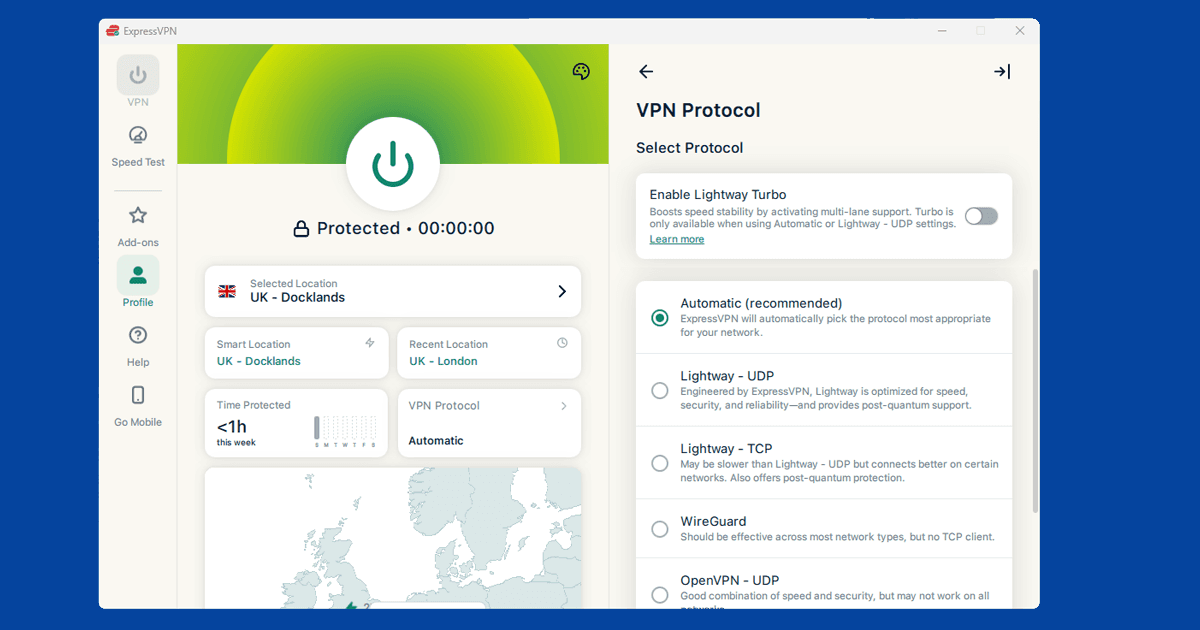
- ExpressVPN: Preferences > Protocol, then select OpenVPN TCP or Lightway TCP.
Our full protocol-switching guide has step-by-step instructions for every major VPN app.
Fix 2: If your VPN connects but nothing loads
If your VPN shows as connected but no websites open and nothing loads, the university may be blocking traffic to your VPN provider's servers at the firewall level, even after the VPN tunnel has formed. This is different from blocking the connection type itself.
A few things to try:
- Switch to a different server location. If some servers work and others don't, the block is targeting specific IP addresses rather than VPN traffic broadly. Try a server in a different city or country.
- Use our IP and DNS checker. Run it with your VPN connected. If it shows your VPN's IP address, the tunnel is working and the issue is something else. If it shows your real IP, traffic is leaking outside the VPN.
- Enable DNS leak protection. Sometimes a connected VPN still sends some requests outside the tunnel. Turning on DNS leak protection in your VPN settings plugs this gap.
- Contact your VPN provider's support. Many keep a list of servers that work well on heavily restricted networks. A quick message to their live chat usually gets you a working server quickly.
Fix 3: Use your phone's mobile hotspot
If the university network is too locked down and nothing above is working, the easiest option is to skip the campus network altogether. Turn on your phone's mobile hotspot, connect your laptop to that instead of the campus wi-fi, and your VPN should connect straight away. Mobile networks don't have the same filtering as managed campus networks.
The main trade-off is data usage. For browsing and email this works well, but streaming video will burn through your allowance quickly. Check whether your plan includes tethering before relying on it heavily.
Which VPN works best on university networks
Switching to OpenVPN TCP on port 443 gets most people through. If your campus filtering is aggressive, the VPN provider you're using starts to matter more.
NordVPN is our top pick for campus use. It supports OpenVPN TCP, WireGuard, and IKEv2, has straightforward in-app settings for switching between them, and a large server pool that gives you alternatives if a specific server gets blocked.
ExpressVPN is a strong alternative. Its Lightway protocol has a TCP mode that handles restrictive networks well, and its automatic protocol setting often picks the right option without you adjusting anything.
If you're on a particularly aggressive network and the above don't get through, look for a VPN with obfuscation or stealth features. These disguise VPN traffic as regular web browsing, making it much harder for firewalls to identify and block.
Free VPNs are rarely effective on university networks. They typically offer fewer protocol options and no obfuscation, which makes them easy to identify and filter out.