FixYourVPN

If your VPN stops working the moment you join a public wi-fi network, the fix is usually quick. Public networks in cafes, airports, and train stations handle VPN traffic in different ways, but two causes cover most problems: the network's sign-in page hasn't been completed yet, or the network is filtering certain types of connection.
Why public wi-fi is riskier than it looks
Many public wi-fi networks are unencrypted or shared in ways that make your traffic visible to others on the same network. On an unencrypted network, anyone else connected to the same wi-fi can potentially intercept the data passing between your device and the internet. That includes login details, emails, and anything else sent without its own encryption layer. A VPN wraps everything your device sends in encryption before it leaves, so even if someone is watching the network, they can't read your traffic.
This matters more on public networks than at home. Your home router is a private, controlled environment. A coffee shop or airport network is shared with strangers. Getting your VPN working is basic protection for anything sensitive you do away from home.
Fix 1: Complete the network's sign-in page first
This fixes most VPN problems on public networks. When you join a public wi-fi network, a sign-in or terms page usually appears in your browser before you get full internet access. Until you complete that step, only basic web traffic is allowed through, and VPN connections fail because they need a full internet connection to form.
Here's the right order:
- Turn your VPN off if it's running.
- Connect to the public wi-fi.
- Open your browser. The sign-in page should appear automatically. If it doesn't, try navigating to a plain HTTP website rather than HTTPS. Sign-in pages redirect HTTP traffic to the login page, but can't always intercept HTTPS addresses.
- Accept the terms or complete the login.
- Once a web page loads normally, turn your VPN back on.
Some larger venues run separate networks for different areas. If your VPN worked at one end of an airport but fails at another terminal, connect to that network, complete its sign-in page, and then reconnect your VPN.
Completing the sign-in page before turning on your VPN fixes most public wi-fi VPN problems. If yours still won't connect after that, the network is actively filtering traffic, and that's what the next fix is for.
Fix 2: Switch your VPN protocol
If you've completed the sign-in page and the VPN still won't connect, the network is filtering VPN traffic by connection type. Switching to a protocol that looks like ordinary web browsing gets through on most restricted networks.
Open your VPN app and look for a Protocol or Connection setting. Try these in order:
- OpenVPN TCP on port 443. Port 443 is the standard port for HTTPS web traffic. Blocking it would break most of the internet, so most networks leave it open. On restricted public networks, this is usually the best option to try first.
- WireGuard. Some networks block OpenVPN but not WireGuard. Worth trying if OpenVPN doesn't work.
- IKEv2. Worth trying, particularly on mobile devices. Some networks block it, so treat it as a third option rather than a sure fix.
How to switch in the main apps:
- NordVPN: Settings > Connection > VPN Protocol, then select OpenVPN (TCP).
- ExpressVPN: Preferences > Protocol, then select OpenVPN TCP or Lightway TCP.
Our full protocol-switching guide has step-by-step instructions for every major VPN app.
Fix 3: Use your phone as a mobile hotspot
If nothing else works, skip the public network altogether. Turn on your phone's mobile hotspot and connect your laptop or tablet to that instead. Your VPN will connect normally over mobile data, which doesn't have the same filtering as public wi-fi networks.
The main trade-off is data usage. For browsing and emails this works fine, but streaming will eat through your allowance quickly. Check your mobile plan includes hotspot use before relying on it.
Fix 4: Set your VPN to auto-connect on unfamiliar networks
If you use public wi-fi regularly, most VPN apps have a setting that switches the VPN on automatically whenever you join an unfamiliar network. This means you can't accidentally forget to turn it on. Look for Auto-connect on untrusted wi-fi or Always-on VPN in your VPN app's settings.
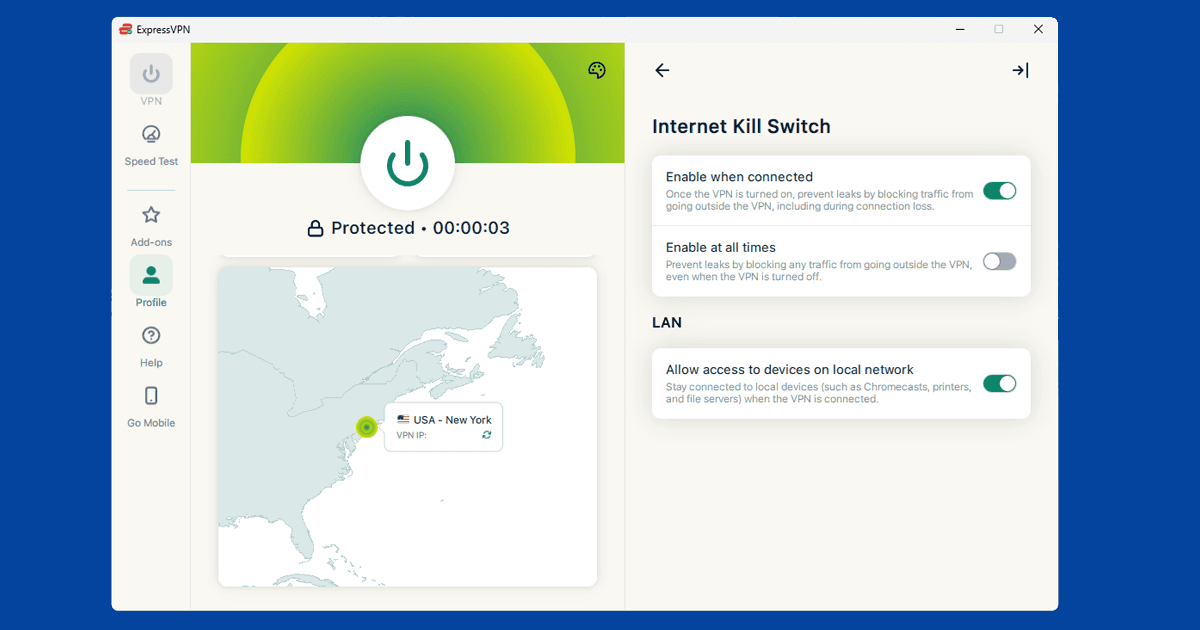
Pair this with your VPN's Kill Switch. The kill switch pauses your internet if the VPN drops rather than letting unprotected traffic through. Together, the two settings keep your traffic protected on public networks automatically.
Which VPN works best on public wi-fi
On public networks, a VPN that can switch connection methods when one isn't working is far more useful than one locked to a single option.
ExpressVPN is our top pick for public wi-fi. Its Lightway protocol has a TCP mode that gets through most restricted networks, and its automatic protocol setting often picks the right option without you needing to change anything.
NordVPN is a strong alternative. It supports OpenVPN TCP, WireGuard, and IKEv2, with clear in-app settings for switching between them and a large server pool for when a specific server is unreachable.
Free VPNs tend to struggle on restricted public networks. They usually offer fewer protocol options, which makes them easier to filter. If you regularly use public wi-fi, a paid VPN with flexible protocol support is worth it.
If your VPN won't connect at all
If your VPN isn't connecting at all on a public network, try switching protocol to WireGuard or OpenVPN TCP on port 443 first. On very restrictive networks, these are often the only options that get through.
If the VPN still won't connect, test it on mobile data. If it works there, the public network is the issue. If it doesn't work on mobile data either, the problem is likely with the VPN app itself. Contact your VPN provider's support and they'll be able to point you to a working server or setting.