FixYourVPN

Disney+ can block you for two completely different reasons, and they look the same on the surface. One is your VPN being detected; the other is your account being tied to a different region. The fix for each is different, so it's worth spending a moment working out which one you have before trying anything.
Two problems that look the same (but need different fixes)
Disney+ has two distinct ways of blocking access, and they're easy to mix up. Knowing which one you're dealing with before you start will save a lot of time and frustration.
Problem one: a VPN block. Disney+ has spotted that your IP address looks like it belongs to a VPN server and is refusing to let you stream. You'll usually see an error mentioning a proxy being detected, or a message saying content isn't available in your region.
Problem two: an account region mismatch. Your VPN is working fine and your IP looks correct, but Disney+ is showing you the wrong content library. This isn't a detection issue; it's because Disney+ ties your content library to the country where your account was created.
The quickest way to tell which problem you have: if you're seeing an error message, it's a VPN block. If Disney+ loads and plays but shows the wrong library, it's a region mismatch.
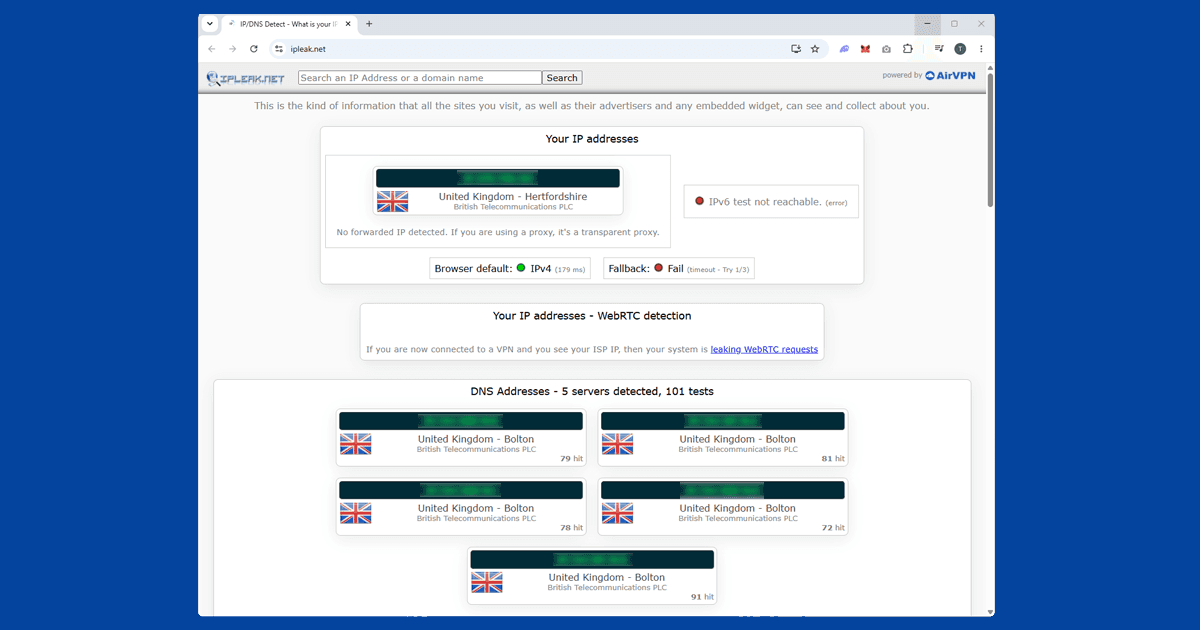
Common error messages from a VPN block include "This content is not available in your region," "Our systems have detected that you may be using a VPN or proxy," and "Content not available" (exact wording can vary slightly). If you're seeing something like this, start with the VPN block fixes below. Before anything else, open our IP address checker to confirm your VPN is giving you an IP in the right country; if it isn't, the issue is with your VPN connection itself rather than Disney+'s detection.
Fixing a VPN block
Disney+ detection is IP-based, which means it can only block the servers it already knows about. Newer servers tend to stay ahead of the blocked list, which is exactly why switching servers works when other fixes don't.
If you're seeing an error message about a proxy or unavailable content, work through these steps in order:
- Switch to a different server in the same country. Disney+ blocks IP addresses, not the VPN protocol itself, so a server that's been flagged sits alongside others in the same country that haven't been touched yet. Try two or three before moving on.
- Clear your cookies and open a private window. Disney+ stores location data in your browser, and old cookies can cause a block even with a fresh VPN connection. Connect your VPN first, then open an incognito window before loading Disney+.
- Chrome: Three-dot menu > Settings > Privacy and security > Clear browsing data
- Firefox: Hamburger menu > Settings > Privacy & Security > Clear Data
- Safari: Safari > Settings > Privacy > Manage Website Data
- Edge: Three-dot menu > Settings > Privacy, search, and services > Clear browsing data
- Chrome on Android: Three-dot menu > History > Clear browsing data
- Safari on iPhone: Settings > Apps > Safari > Clear History and Website Data
- Try the Disney+ app instead of a browser. The app doesn't rely on browser-level location caching, which makes it more reliable with a VPN. Connect to your VPN first, then open the Disney+ app on your phone, tablet, smart TV, or streaming device.
- Enable your VPN's kill switch. If your VPN drops mid-session and reconnects, Disney+ can detect the change in IP address and lock you out. A kill switch pauses your internet the moment the VPN drops, preventing that from happening. Look for it in your VPN app's settings.
For other general fixes, our guides on fixing DNS leaks, switching protocol, and switching servers cover each step.
Fixing an account region mismatch
If your VPN is connected and your IP looks right, but you're still seeing the wrong content library, the issue is your account region. Disney+ ties your account to the country where it was created and where your payment method is registered. Connecting to a VPN server in a different country doesn't change that.
This mainly comes up if you're looking for content exclusive to one region. Disney+ libraries overlap quite a lot; most major Marvel, Pixar, and Star Wars releases are available in most territories. The gap tends to show up with older catalogue content or titles that are only licensed in certain countries, and your account region determines what you can see regardless of where your VPN connects.
Officially changing your Disney+ account region means updating your payment method to one from the target country, and Disney+ does check this, so it's not something a VPN alone can do.
If you're travelling and simply want to keep watching your home library, a VPN connected to a server in your home country is all you need. Most people abroad don't need to touch their account region at all.
Disney+ on smart TVs, consoles, and streaming sticks
A VPN is easy to run on a laptop or phone. Smart TVs, PlayStation, Xbox, and Roku are a different story, since most of these devices don't support VPN apps directly.
If Disney+ is blocking you on one of these, here are the options that work:
- Set up the VPN on your router. If your router supports VPN connections (many mid-range and above routers do), every device on your home network gets the VPN's IP address automatically, including your smart TV, with no app needed on the TV itself. Check your router's settings and your VPN provider's setup guide for the specific steps, as they vary by make and model.
- Share your laptop's VPN connection as a wi-fi hotspot. Connect your laptop to the VPN, create a hotspot, and connect your smart TV or console to it instead of your regular wi-fi. It takes a bit more setting up, but works reliably once it's running.
- Use a Fire TV Stick or Android TV device. If you have one of these, you're in the easiest position. The Disney+ app and most major VPN apps are available directly from the Amazon Appstore. Install your VPN, connect to a server, then open Disney+.
- Check if your VPN provider includes SmartDNS. SmartDNS reroutes your DNS traffic rather than encrypting everything, which makes it faster for streaming. It doesn't provide the privacy protection of a full VPN, but it's a convenient option if your provider includes it at no extra cost.