FixYourVPN
If Paramount+ keeps blocking your VPN, you're usually one or two steps away from a fix: either you connected in the wrong order, or the server you're on has been flagged. Both are easy to sort. The steps below start with the most common cause and work through everything else.
Why Paramount+ blocks VPNs
Paramount+ licences its content separately for each country. A show available in the US might not have the rights cleared for the UK, and the same goes the other way around. To enforce those deals, Paramount+ checks your IP address against lists of known VPN server addresses. It's reasonably strict in the US market, though not as aggressive as BBC iPlayer or Hulu.

What's on Paramount+
The US library is the biggest and carries most of what people are trying to reach from outside the US:
- Paramount originals: Yellowstone and its spin-offs including 1923, Tulsa King, and the full Star Trek slate (Strange New Worlds, Picard, Discovery, and more)
- CBS content: Survivor, Big Brother, The Challenge, CBS dramas, and live CBS sports including NFL games on CBS
- South Park: the complete back catalogue plus new seasons, exclusive to Paramount+ worldwide
- Paramount films: theatrical releases from Paramount Pictures arriving after their cinema run
- Live sports (US): UEFA Champions League, NFL on CBS, and selected college football
The UK version is available standalone at paramountplus.com and is also included with Sky Cinema subscriptions. It carries Paramount originals and films, but CBS live sports aren't part of the UK library. If you want the full US catalogue including sports and CBS content, you need a US Paramount+ account and a VPN connected to a US server.
Connect your VPN before opening Paramount+
This is the most common reason Paramount+ blocks VPN users: connecting in the wrong order. Paramount+ logs your IP address the moment the page first loads. If you're already on the site when you switch the VPN on, it has already seen your real location, and server-switching alone won't always fix it. Always go in this order:
- Connect your VPN to a US or UK server, depending on which library you want.
- Open a fresh private or incognito window. This clears any cached location data from your last session.
- Go to paramountplus.com and sign in. The site will only ever see your VPN's IP address.
Switch to a different server
If you connected in the right order but Paramount+ is still showing a location error, the server you're on has most likely been added to its blocked list. Paramount+ blocks individual IP addresses rather than entire countries, so trying a different US or UK server is usually all it takes to find a clean one. Our guide to switching VPN servers walks through the steps for all the major apps.
NordVPN and ExpressVPN tend to have better results with Paramount+ than smaller providers because they maintain larger pools of IP addresses and rotate out flagged ones regularly. A free VPN with a small shared IP pool will get blocked and stay blocked.
While you're in your VPN settings, it's worth turning on the kill switch. If your connection drops mid-session, a kill switch cuts your internet rather than silently falling back to your real IP, which stops Paramount+ from locking onto your actual location. Our kill switch guide explains how to enable it in the main VPN apps.
Clear cookies and use a private window
If Paramount+ was working before but has suddenly stopped, stale cookies are a likely cause. Your browser holds onto session data from previous visits, including location information, and Paramount+ can read that cached data even after your IP has changed. Opening a private or incognito window gives you a fresh start. To clear cookies from a previous session manually:
- Chrome: SettingsPrivacy and securityClear browsing data
- Firefox: SettingsPrivacy & SecurityClear Data
- Safari: SafariSettingsPrivacyManage Website DataRemove All
- Edge: SettingsPrivacy, search, and servicesClear browsing data
Reconnect your VPN before reloading Paramount+.
Confirm your VPN is showing the right location
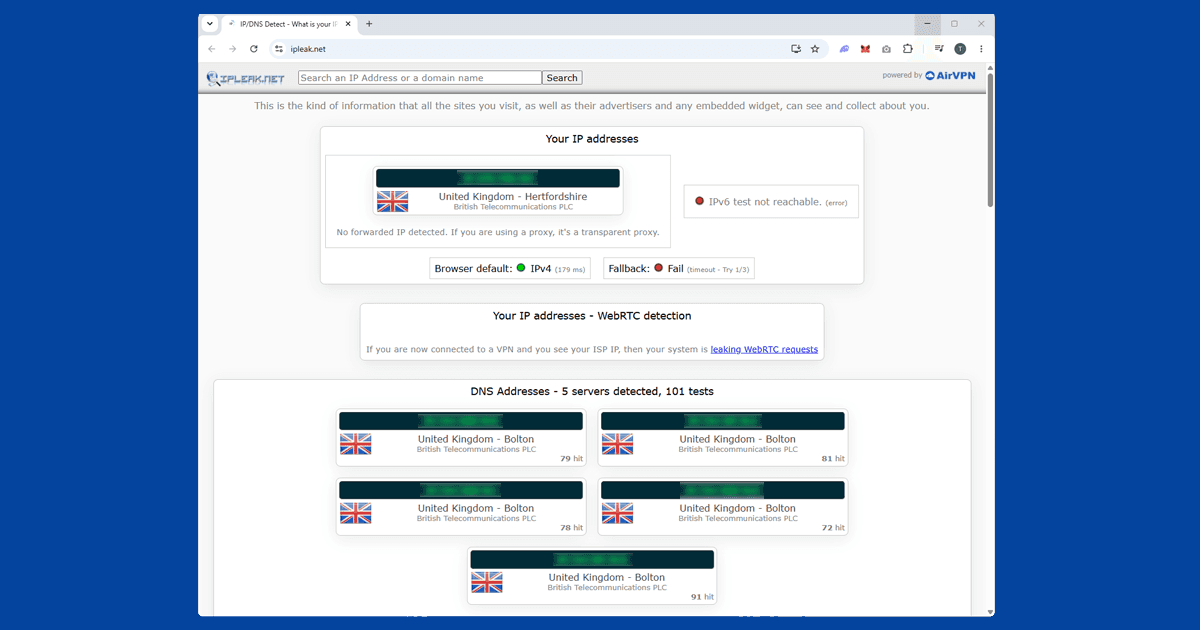
If switching servers still hasn't fixed it, it's worth checking that your VPN is actually routing your traffic correctly. Use our IP address checker with your VPN connected: it shows exactly what Paramount+ can see. If it shows the right country, move on to the DNS leak check below. If it shows your real location, try a different server. If several servers all show your real location, the VPN may need updating. Our VPN recommendations covers the options.
Check for a DNS leak
A VPN can be connected and showing the right IP address while your device is still sending DNS requests outside the tunnel, which can reveal your real location to Paramount+ even when everything else looks fine. This is called a DNS leak. Our IP checker also shows DNS information: if it shows your internet provider's DNS instead of your VPN's, you have a leak.
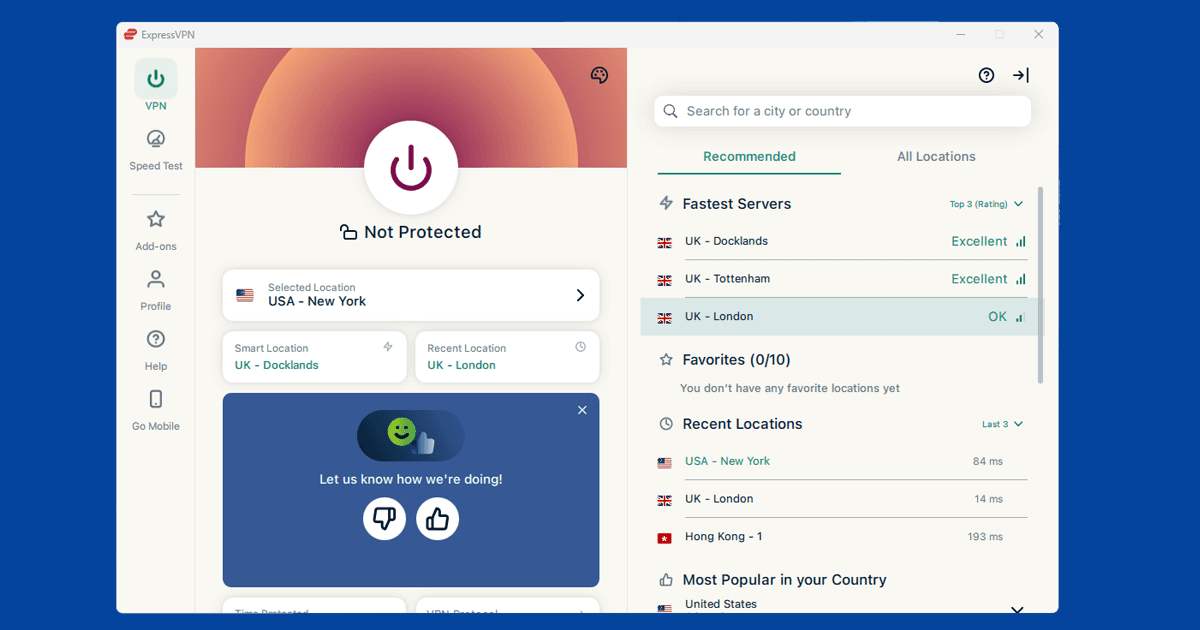
Most VPN apps have a setting to prevent this. In NordVPN it's on by default. In ExpressVPN, look under Preferences for "Use only ExpressVPN DNS servers while connected." If you're still seeing a leak after enabling DNS protection, switching to WireGuard protocol (see the next section) usually resolves it. Our full guide to fixing DNS leaks has the step-by-step for each app.
Try a different VPN protocol
If you've tried several servers and cleared your cookies and Paramount+ is still blocking you, try switching your VPN protocol to WireGuard. It's faster and more reliable than older protocols like OpenVPN, and some users find it gets through where other protocols get blocked. In NordVPN this is called NordLynx. In ExpressVPN it's called Lightway. Our guide to changing your VPN protocol walks through it step by step.
Try the Paramount+ app instead of the browser
If the website keeps blocking you, try the Paramount+ app on iOS, Android, Fire TV, or your smart TV. The app can handle VPN connections differently from the browser, and a block that affects one doesn't always affect the other. If you're on mobile, make sure your VPN is a system-level app rather than a browser extension: extensions only cover browser traffic and won't protect the Paramount+ app.
Watching Paramount+ on a smart TV
Paramount+ is available natively on most smart TV platforms and streaming sticks. What you need to do depends on your device:
- Fire TV Stick: install a VPN app from the Amazon Appstore. NordVPN and ExpressVPN both have Fire TV apps. Connect to a US or UK server before opening Paramount+.
- Android TV / Google TV: install a VPN app from the Google Play Store. Most major VPN providers support Android TV.
- Apple TV: install a VPN app from the App Store. Native VPN support on Apple TV was added in tvOS 17, so you'll need a provider that offers an Apple TV app.
- Samsung, LG, or other smart TVs: these don't support VPN apps directly. Set up the VPN on your router instead, and all devices connected to your home network will route through it automatically.
- PlayStation or Xbox: no native VPN app support. The router method is the way to go here too.
Your VPN provider's support pages will have router setup guides for specific models.
Which VPN works best with Paramount+?
NordVPN and ExpressVPN are the most consistently reliable choices. Both maintain large pools of US and UK IP addresses that are rotated regularly to stay ahead of Paramount+'s blocked lists, and both offer WireGuard-based protocols for stable, fast connections.
Free VPNs rarely work with Paramount+. Their IP pools are small, get flagged quickly, and they don't have the infrastructure to replace blocked addresses. If you're on a free VPN and Paramount+ keeps blocking you, the VPN is the bottleneck rather than anything you're doing wrong. See our full VPN reviews for a look at the paid options.