FixYourVPN

Apple TV+ has one quirk that sets it apart from other streaming services: as well as checking your IP address, it uses your Apple ID's registered country to control what you can watch. That means there are two things to get right rather than one. The good news is that for most people, the fix is straightforward once you know how it works.
What you need to know
Apple TV+ is available in a large number of countries worldwide, which makes it less restrictive than many services. The most common reason people need a VPN with Apple TV+ is simple: you're travelling or living abroad and want to keep watching your existing subscription. A VPN connected to your home country's server handles this reliably.
Apple TV+ is a little different from most streaming services in one important way: your Apple ID's country setting controls your content region, not just your IP address. If your Apple ID is registered to the UK, you'll see the UK catalogue regardless of which VPN server you connect to. For most people watching their existing library from abroad, that's good news: connect to a home-country server and everything works as normal. If you're trying to access a different country's catalogue entirely, you'd need an Apple ID registered in that country; a VPN server alone won't do it.
When Apple TV+ does block your VPN, you'll typically see a geo-restriction error or a "content not available" message. Apple checks IP addresses against known VPN ranges and updates its blocked server lists periodically; a server switch usually resolves it quickly.
Fix 1: Switch to a different server
If Apple TV+ is showing a geo-restriction error, connect to a different server in your home country. Apple updates its blocked server list periodically, so a server that worked last month may now be flagged. Try two or three before moving on to other fixes.
In NordVPN, open the server list, search for your home country, and pick a different numbered server. Servers marked with a streaming icon are worth trying first as they tend to work better with video services. In ExpressVPN, tap Choose Location, select your home country, and try a different city.
Your Apple ID's country controls what you can watch on Apple TV+, not just your VPN server. For watching your existing library from abroad, a home-country VPN is all you need. Accessing a different country's catalogue requires an Apple ID registered in that country.
Fix 2: Sign out and back in with the VPN connected
If the app was used without a VPN before, it may have saved your real location. Sign out of Apple TV+ completely, reconnect your VPN, then sign back in. This gets the app to pick up the VPN's location rather than the one it stored from your last visit. For a full cookie reset on the browser version, use our cookie-clearing guide before reconnecting.
To sign out on iPhone or iPad: open the Apple TV app, tap your profile icon in the top right, then tap Sign Out. On Mac: open the Apple TV app, click your account icon in the top right, then click Sign Out. In a browser: go to tv.apple.com, click your profile icon, and select Sign Out. Reconnect your VPN to a home-country server, then sign back in.
Fix 3: Use the Apple TV app rather than the browser
The Apple TV app tends to work more reliably with VPNs than the tv.apple.com website. If the browser is blocking you, try the app. On mobile, make sure you're using the full VPN app rather than a browser extension. A browser extension only covers your browser: the Apple TV app runs separately and won't be protected by it.
The Apple TV app is pre-installed on iPhone, iPad, and Mac. On Android, check the Google Play Store for the Apple TV app on your device as availability varies; if it's not available, use the website at tv.apple.com instead. On the Apple TV set-top box, the Apple TV app is the primary interface; see Fix 5 below for VPN setup on that device.
Fix 4: Check what Apple TV+ is seeing on the connection side
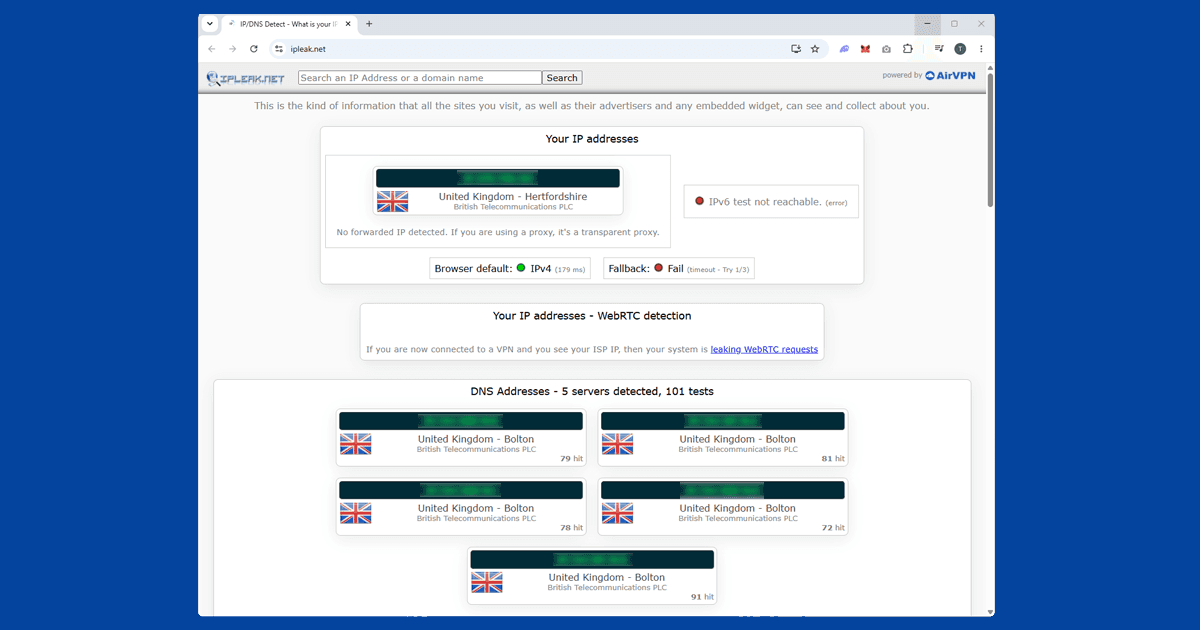
Apple TV+ checks both your IP and your account region, so it's worth confirming the connection side is working before focusing on the account side. Visit our IP address checker with your VPN on: if it shows the right location, the issue is likely account-related rather than connection-related. If it shows your real location, try a different server and test again. Our VPN reviews cover the options that work reliably with Apple TV+.
Fix 5: Watching Apple TV+ on a TV
The setup depends on which device you're using to watch on your television.
Apple TV (set-top box): the Apple TV device doesn't support VPN apps directly. Install your VPN on your router to route all home network traffic through it, or share a VPN connection from your Mac or PC as a wi-fi hotspot and connect the Apple TV to that network. Both options work well.
Amazon Fire TV Stick: the simplest option. Install your VPN app directly from Amazon's app store, connect to your home country's server, and open the Apple TV app normally. Both NordVPN and ExpressVPN are available on Fire TV.
Samsung, LG, and Sony smart TVs: the Apple TV app is natively available on many Samsung Tizen and LG webOS models, and on some Sony Bravia TVs. These don't support VPN apps directly, so use the router method or share a VPN connection from a laptop as a wi-fi hotspot.
Roku: install the Apple TV channel on Roku, then use a router-level VPN or laptop hotspot; Roku doesn't support native VPN apps.
Which VPN works best for Apple TV+
NordVPN is our top pick for Apple TV+. Its large server network means there are plenty of IPs to try when one gets blocked, and it refreshes them regularly. Its NordLynx protocol (built on WireGuard) keeps speeds high enough for 4K HDR streaming without buffering. Look for streaming-optimised servers in the server list.
ExpressVPN is a strong alternative. Its Lightway protocol is equally fast, and its coverage of UK, US, Canadian, and Australian servers (the four most common home-country locations for Apple TV+ subscribers) is reliable. If you get stuck, its support team can usually point you towards a working server.
Free VPNs rarely work with Apple TV+. Their limited IP pools get flagged quickly, and most don't offer streaming-optimised servers. A paid VPN with a large server pool is by far the most reliable option for regular use.
What's on Apple TV+
Almost everything on Apple TV+ is Apple Original content, produced or commissioned by Apple. Unlike Netflix or Prime Video, there's very little licensed third-party content in the mix.
- Drama: Severance, The Morning Show, Slow Horses, Presumed Innocent, Bad Monkey, Disclaimer.
- Comedy: Ted Lasso, Shrinking, Acapulco, Mythic Quest.
- Sci-fi and thriller: Foundation, Silo, Monarch: Legacy of Monsters, Invasion.
- Documentary: Prehistoric Planet, The Enfield Poltergeist, Manhunt.
- Film: Killers of the Flower Moon, Napoleon, Argylle, Fly Me to the Moon.
The catalogue is smaller than Netflix or Prime Video but grows with each new release. Most titles are available across all the countries where Apple TV+ operates, and regional exclusions are less common than on other services.