FixYourVPN

YouTube TV uses your IP address to work out whether you're in the US, and if you're not, it blocks you. For existing subscribers, connecting to a US VPN server is all it takes. If you're travelling for a few weeks, it usually takes under a minute to sort. If you're living abroad and wondering about the longer term, the guide covers that too.
Why YouTube TV blocks you outside the US
YouTube TV carries live TV channels whose broadcast rights only cover US audiences. Networks like Fox, NBC, ESPN, and CBS license their content territory by territory, and YouTube TV holds US rights only. When you travel or move abroad, those licensing rules still apply to your account. The service has no way to make an exception for individual subscribers.
The block is IP-based. YouTube TV checks your IP address against databases of known US locations and refuses traffic that comes from outside the US. A VPN connected to a US server replaces your real IP with a US one, which is what gets you back in. Use our IP address checker to confirm your VPN is showing a US address before troubleshooting anything else.
YouTube TV is connected to your Google account. If you've visited it before without a VPN, Google may have stored your location from that session. Clearing cookies before connecting gives YouTube TV a clean read of your current IP rather than your browsing history.
Fix 1: Connect to a US server
Open your VPN app, select a US server, and wait for the connection to confirm before opening YouTube TV. In NordVPN, tap the US from the country list or use the search bar. In ExpressVPN, select United States from the server list. New York and Los Angeles servers tend to work well with YouTube TV.
If your VPN drops mid-session and reconnects automatically, YouTube TV can detect the change and cut your stream. To prevent that, turn on your VPN's Kill Switch in the app settings. The kill switch pauses your internet if the VPN drops, so your real IP can't leak through while it reconnects.
Fix 2: Switch to a different US server
If YouTube TV shows a location error or content won't load, switch to a different US server and try again. YouTube TV's detection is IP-based, so it can only block servers it has already identified. A server it hasn't flagged yet will usually get through. Try different cities rather than switching within the same location: if New York isn't working, try Chicago, Los Angeles, or Dallas. See our guide on switching VPN servers for step-by-step instructions.
Fix 3: Clear cookies and open a private window
If you've used YouTube TV before without a VPN, or connected to a non-US server at some point, Google may have stored your location from that session. Clear YouTube TV cookies before connecting your VPN, then open a fresh private window.
- Chrome: three-dot menu Settings Privacy and security Clear browsing data. Tick Cookies and set range to All time.
- Firefox: hamburger menu Settings Privacy & Security Clear Data.
- Safari: Safari Settings Privacy Manage Website Data Remove All.
- Edge: three-dot menu Settings Privacy, search, and services Clear browsing data. Tick Cookies and Cached images.
For a full walkthrough, see our guide to clearing cookies for VPN streaming.
Check your VPN is showing a US location
If YouTube TV is still blocking you after switching servers, check that your VPN is actually working before trying anything else. Visit our IP address checker with your VPN switched on. It shows you exactly what location YouTube TV can see. If it reports a US location, your VPN is working fine and the block has a different cause, so move to the next fix. If it shows your real location, your VPN isn't hiding it on that server: switch to a different US city and check again.
Change your VPN protocol
If you've switched servers and your IP looks correct but YouTube TV is still refusing to play, try changing how your VPN connects. VPN apps can connect in a few different ways, and some cut through streaming restrictions better than others. WireGuard is the fastest modern option and the one to try first.
Open your VPN app's settings and look for a section called Protocol or Connection. Select WireGuard. On NordVPN, WireGuard runs under the name NordLynx. On ExpressVPN, try Lightway instead: it's ExpressVPN's own high-speed protocol and a big step up from the older options. Reconnect after switching, then try YouTube TV again. Our guide on changing your VPN protocol covers all the major apps.
YouTube TV on streaming devices
YouTube TV has apps for most popular streaming devices: Fire TV Stick, Apple TV, Roku, Android TV, and Chromecast. How you run a VPN on each one depends on the device.
- Fire TV and Android TV: install the VPN app directly from the app store. NordVPN and ExpressVPN both have dedicated Fire TV and Android TV apps.
- Apple TV (tvOS): both NordVPN and ExpressVPN have native Apple TV apps, so you can install one directly and connect before opening YouTube TV. For other VPN providers without a tvOS app, the router method below is the alternative.
- Roku: Roku doesn't support VPN apps natively. Use the router method, or cast YouTube TV from a phone or laptop running the VPN app.
- Samsung, LG, Sony smart TVs: no native VPN app support on the built-in OS. The router method is the easiest option, or cast from your laptop.
If you're travelling and using a device you don't control, the simplest option is to cast YouTube TV from your phone or laptop, where you can run a VPN app directly.
Setting up a VPN at router level
Setting up the VPN on your router means all home network traffic goes through it automatically. Any device on that network, including your TV, gets a US IP without needing its own VPN setup. Most major VPN providers have router setup guides in their support section. Once it's running, open YouTube TV on any device on the network and it should just work.
Streaming quality and VPN performance
If YouTube TV loads but picture quality drops or buffering is more frequent than usual, these steps usually help:
- Switch to WireGuard if you haven't already. It's the fastest protocol available and often makes a noticeable difference to streaming quality.
- Pick a US server that's close to you. If you're in Europe, an East Coast server (New York, Washington DC) will typically give better speeds than one in California.
- Try a less busy server. Some VPN apps show server load. If yours does, look for one under 50% busy. If not, the "best server" or "recommended" option usually picks the quietest one automatically.
- Close other bandwidth-heavy apps while watching. Video calls, large downloads, and cloud backups all share the same connection.
If you don't have a YouTube TV subscription yet
Signing up from outside the US takes a bit more work than just connecting a VPN. YouTube TV requires a US payment method to subscribe: a US credit or debit card, or a US Google Play balance. A VPN changes your IP address but has no effect on your payment details. Google requires a US payment method for YouTube TV even when your IP looks American.
If you're a UK resident looking to sign up, you'd need a US bank account number, a prepaid US virtual card, or US Google Play gift cards. Services like Wise issue US account numbers that some subscribers report using for this purpose, though this is outside our own testing. Check the current payment requirements on YouTube TV's sign-up page before you start, as these can change.
If you're travelling and already have an active subscription, none of this applies. The payment stage is already done and a US VPN server is all you need.
What's on YouTube TV?
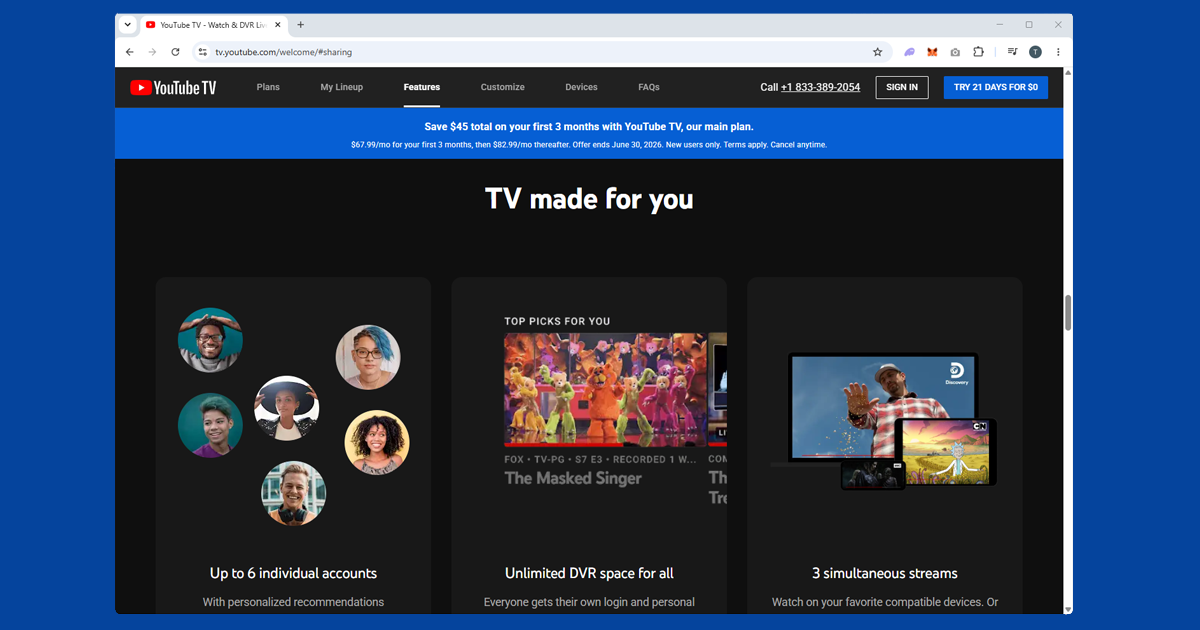
YouTube TV is a live television service with over 100 channels, designed as a cable replacement. Channels include local broadcast networks (ABC, CBS, NBC, Fox, PBS), major sports networks (ESPN, ESPN2, Fox Sports, NFL Network, NBA TV), news (CNN, MSNBC, Fox News), and entertainment (FX, Bravo, HGTV, TLC, Comedy Central). The base plan includes unlimited cloud DVR storage and up to six accounts per household, with no annual contract.
For US expats or longer-term travellers, YouTube TV is one of the main options for keeping up with live US sports, local news, and primetime programming from abroad.
If your VPN won't connect at all
If the VPN itself isn't connecting rather than YouTube TV blocking you, try switching the protocol to WireGuard or OpenVPN TCP on port 443. Some hotel and public wi-fi networks block standard VPN connections. If you're on a restricted network, our guide on VPN on public wi-fi covers the full fix.
If you're still stuck, NordVPN and ExpressVPN are the most reliable options for US streaming. Both maintain large US server pools with regular IP rotation to stay ahead of blocked server lists.